Chat Interfaces and Filters
Unless your primary job is management or HR at a medium-large company, you will spend more of your time in the chat section of Amua than the workspace section, and there are several tools available to you to filter through potentially thousands of chats to pinpoint exactly what you're looking for.
Amua and Telegram should match by default#
If you compare your Telegram next to Amua, the chat feeds should be practically identical: chat positioning, titles, timestamps, last message/action previews, notification counts, etc. should all match. Messages and reactions sent and received in Telegram will show up in Amua instantly, and vice versa.
The main difference will be unsent drafts involving media, as Telegram does not allow drafts with photo/video/file attachments, while Amua allows you to navigate the rest of the app while attachments are loaded in a draft.
Beyond that, Amua, offers several filters that allow you to remove distractions and display only the chats you want at a time.
Using chat filters to optimize your experience#
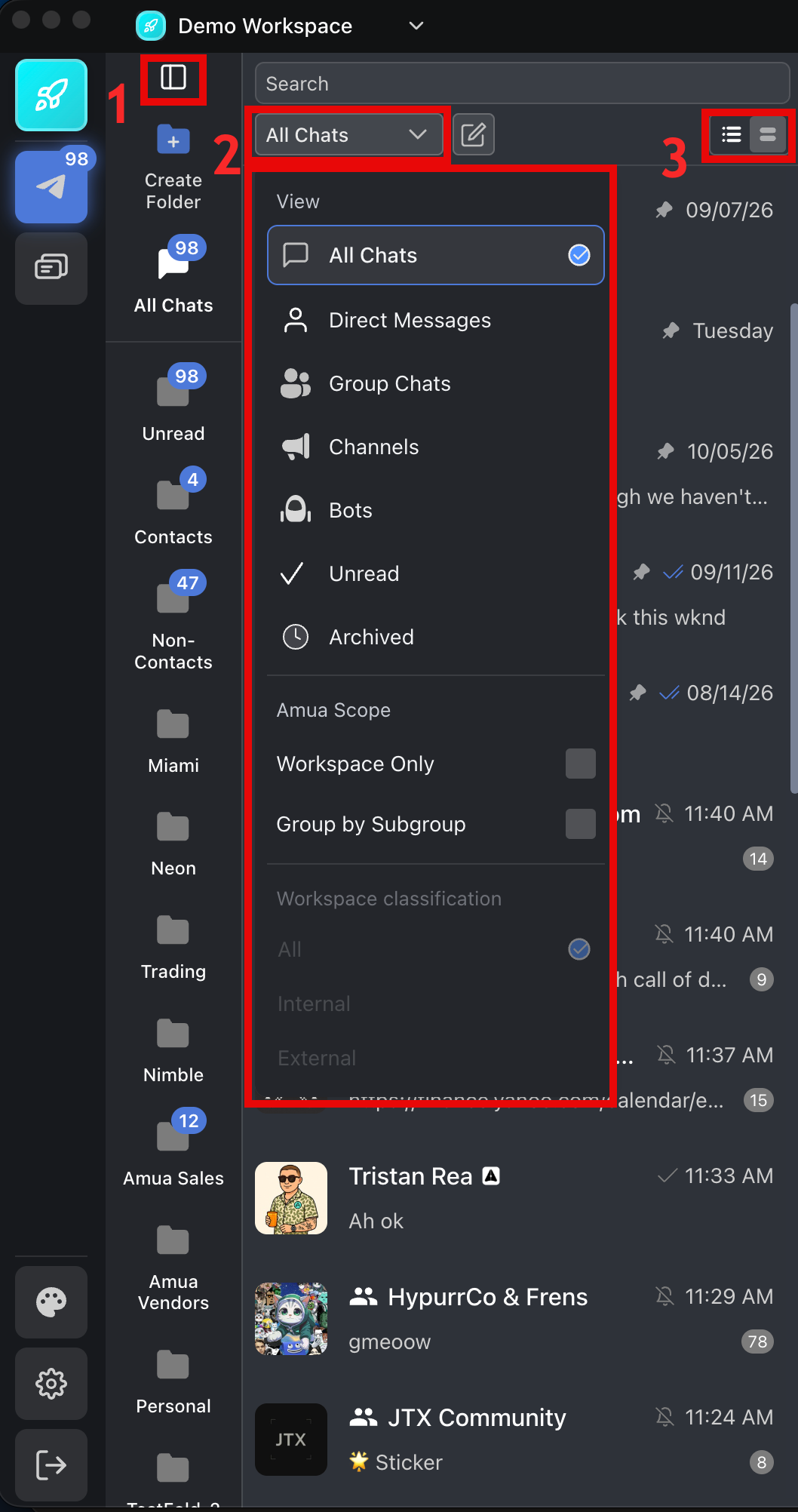
In the screenshot above:
- This button expands/collapses your folder view. Folders are offered by Telegram to organize chats, so anyone who's been on Telegram for work probably has many of these. Telegram allows a single free user up to 10 folders with 100 chats per folder, or up to 30 chats with 200 chats per folder on Telegram Premium, and Amua honors those limits. Any changes made to a folder or its contents are synced between Amua and Telegram. Folders can contain DMs, group chats, channels, and bot chats in any combination.
- This menu offers a range of filters for your chat feed:
In the View section:
- All Chats - no filter. Default state.
- Direct Messages, Group Chats, Channels, and Bots filter out all other types of chats
- Unread - only shows chats with unread notifications, no matter what type of chat it is
- Archived - only shows chats you've archived, which are hidden from the normal chat feed
In the Amua Scope section:
- Workspace Only - only shows chats that have been added to the currently selected workspace. The structure of your workspace powers how these results are populated. More on this below
- Group by Subgroup - only your workspace chats, but organized by subgroup so that you can collapse sections of irrelevant chats and focus on only your work
The Workspace Classification section is enabled only when the "Workspace Only" filter is engaged, and deals with whether your chat feed shows internal, external, or both types of chats. More on that below.
- This toggle allows you to simplify and compress your chat feed if you don't need to see all the details Telegram displays in the chat preview. This compression allows you to see double the amount of chats in one view
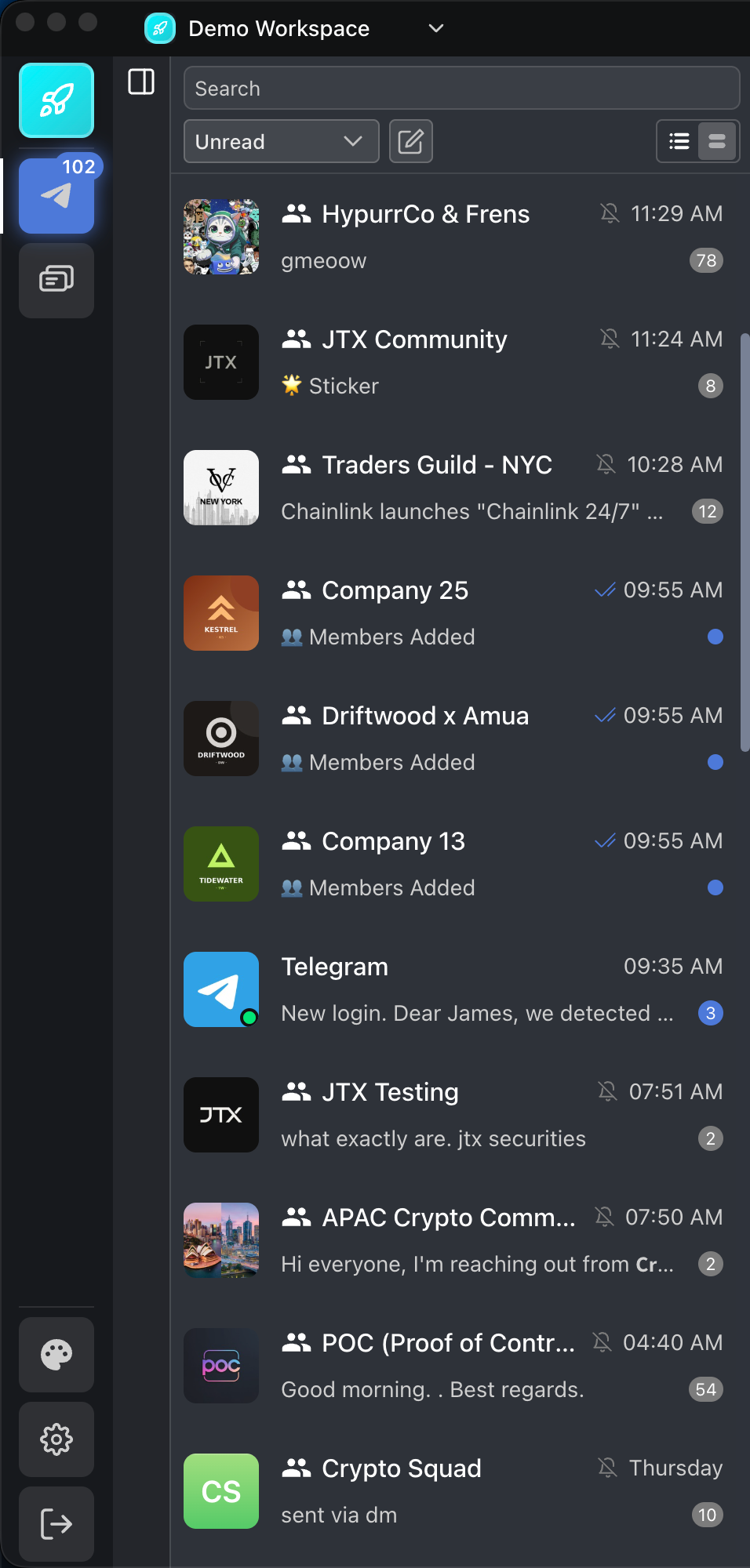
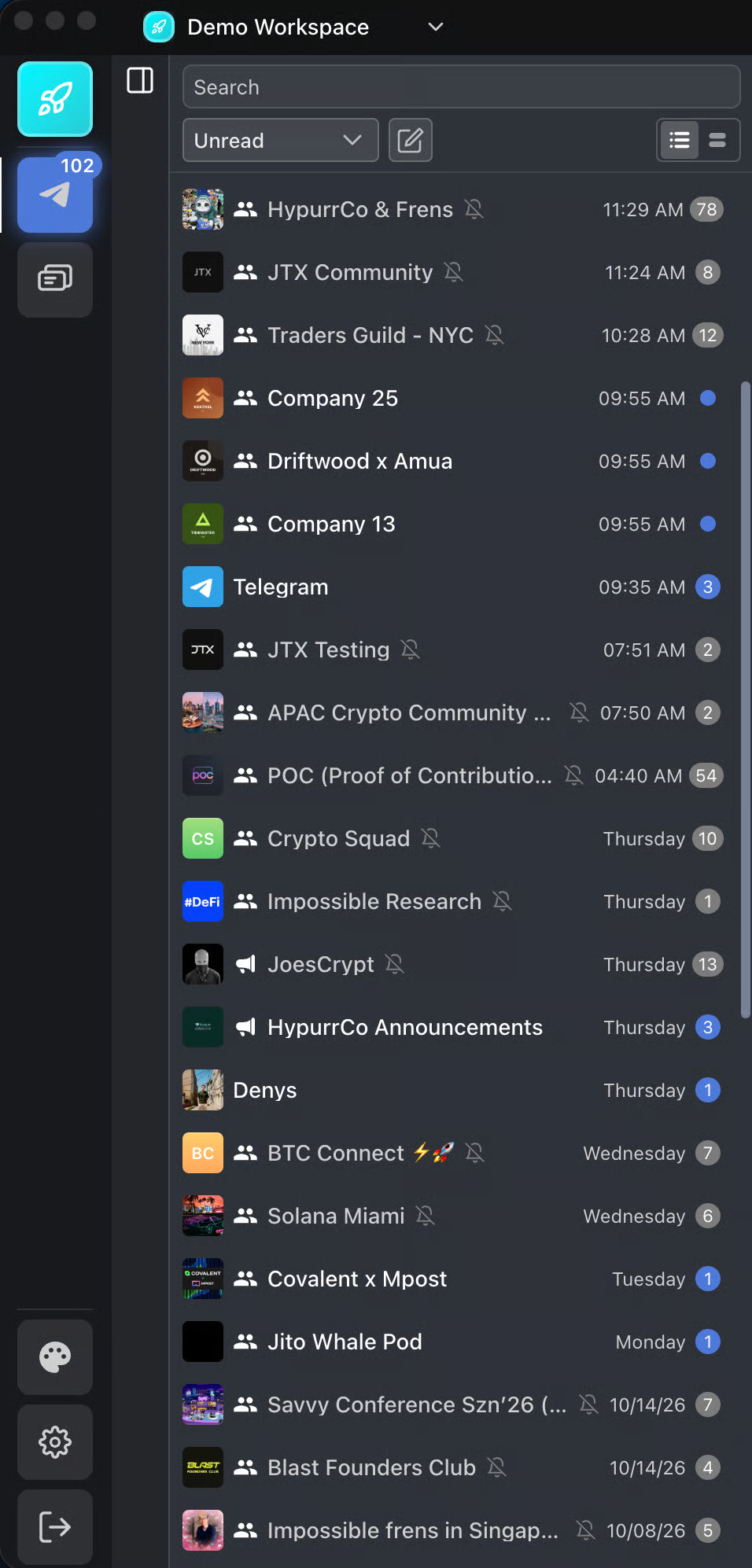
How your workspace structure powers the chat filters#
Decisions made in the workspace generate classifications about the people and chats you're organizing. For example, chats between you and members added in the Team tab are implicitly *internal* DMs, whereas chats between you and contacts added in the Contacts tab are implicitly *external* DMs.
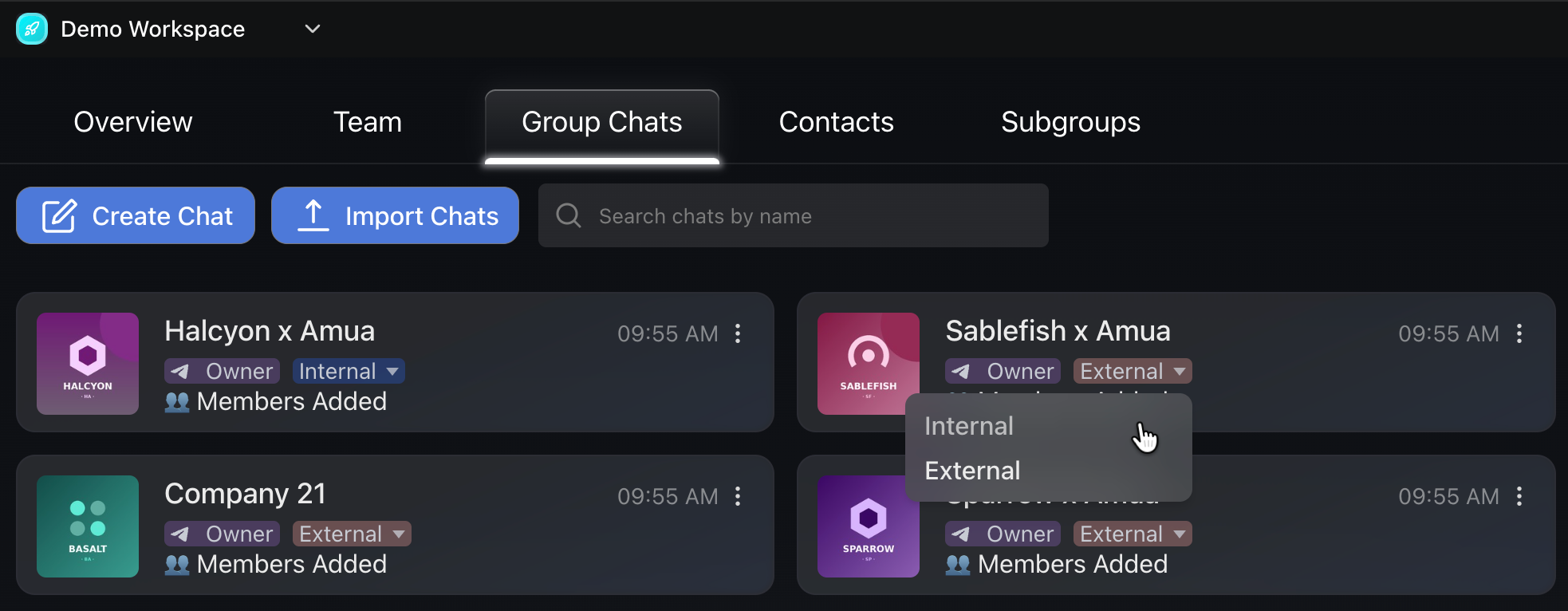
Group chats require more explicit differentiation. By default, chats created or imported in the Group Chats tab will show as "External," but can be classified as "Internal" by selecting it in the dropdown menu. This feature is currently nothing more than a visual tag for other users in your workspace, and a categorization that powers chat filtering.
Subgroups power the "Group by Subgroup" filter, but keep in mind the above, since you can have both internal and external people and chats in a subgroup.