The Workspace
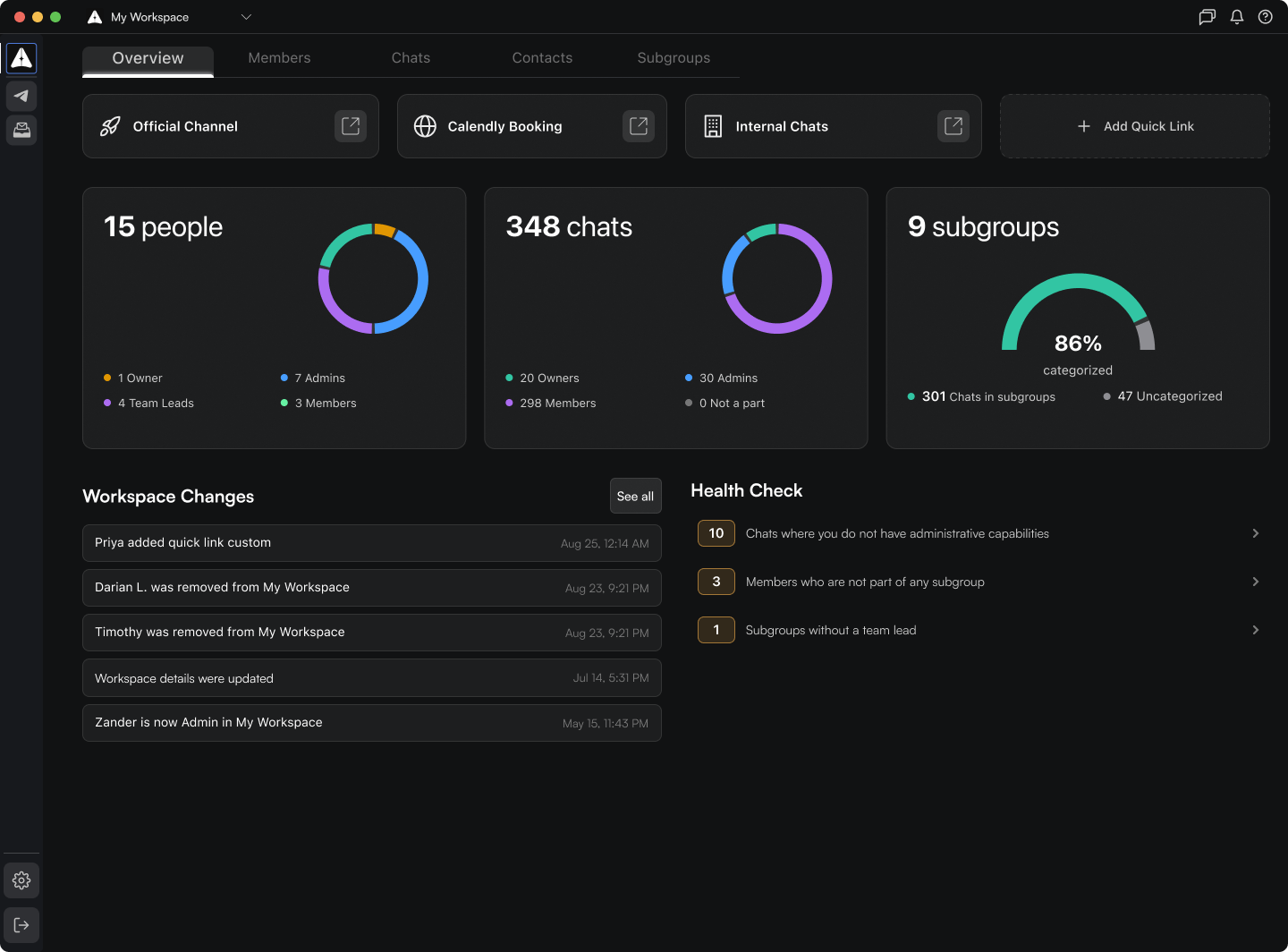
Everything in Amua is built around a workspace. This can be a 1-person workspace or a 10,000-person workspace. It is the foundation upon which your team and workflows are configured. Every feature in Amua is contained within a workspace.
For information on which of these features impact your Telegram environment, refer to the documentation here.
Creating or joining a workspace#
Amua generates a basic workspace for you when you first create an account. You can rename it, add your team to it, and configure it however you like — or, keep it personal, and create a brand new workspace specifically for your team.
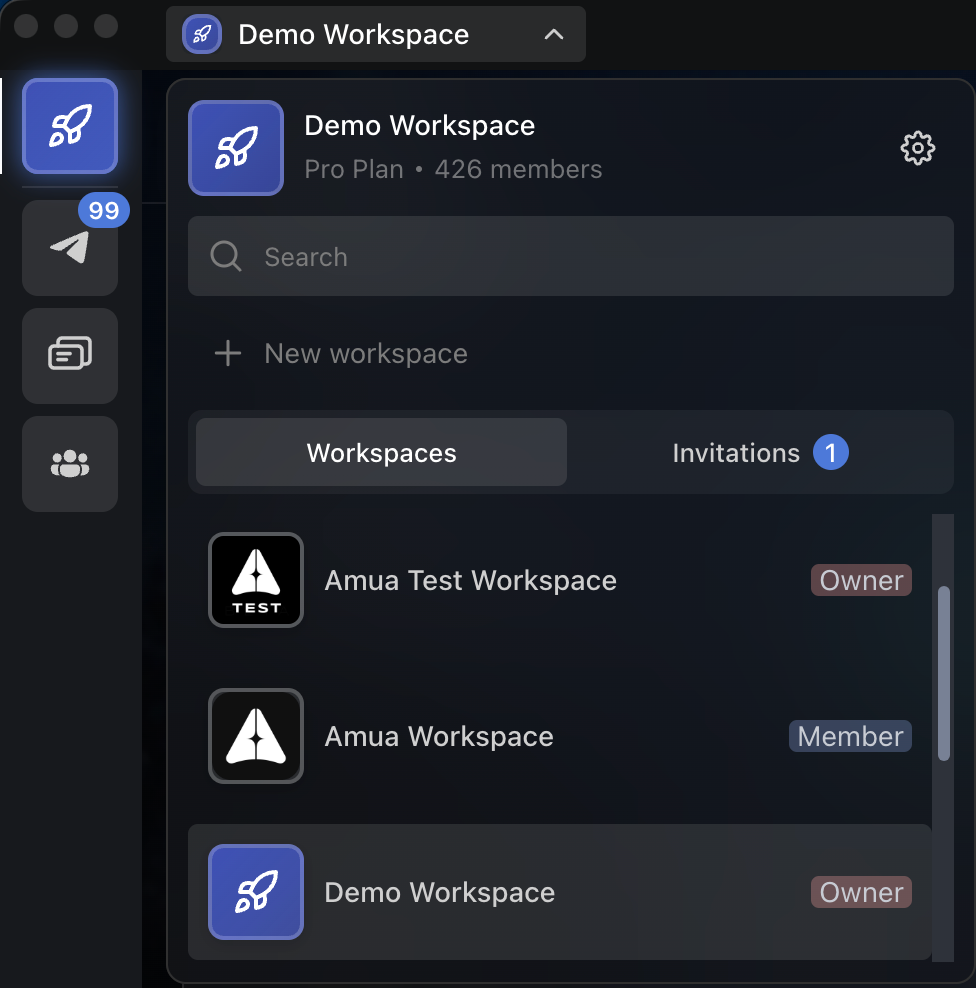
If you want to create a new, separate workspace, navigate to the workspace section (top left dropdown menu) and click the "+ New workspace" button. Name it after your company or project and customize it to your liking.
If you've been sent a workspace invitation by an employer or teammate, it can be found in the "Invitations" tab of the same section.
Team management#
The Team tab is where you manage workspace membership. Click the "Invite Member" button and add your teammates to the workspace. This can be done in bulk.
These users will be given the Member role by default. To manage roles or remove a user from the workspace, click the user's overflow menu icon and select "Manage roles."
It is recommended that these users join Amua, but it is not necessary. You still have administrative control over them with respect to your workspace structure and the Telegram chats they're in that you own or administer.
Adding users to your workspace does NOT automatically add them to Telegram chats. However, clicking "Remove from workspace and all chats" will remove the user from any workspace Telegram chats you share for which you have administrative control.
For more information, see Roles and Permissions.
Chat management (group chats)#
The Group Chats tab is where you and your team can view and manage all of the group conversations occurring in your workspace. Import your existing Telegram chats into Amua with the "Import Chats" button, or create new ones with the "Create Chat" button.
The following information is displayed for each group chat in the workspace:
- Basic chat information (chat title, timestamp of last message, message preview, number of missed notifications)
- Your role within that Telegram group: Owner, Admin, or Member
- An overflow menu where you can view chat info, remove it from the workspace (does not delete the chat), and toggle an "internal" tag that appears next to your Telegram group role
If you click on any chat, you can manage it or view information the same as you would in Telegram. If you don't have rights to take certain actions in a group in Telegram, you won't in Amua either. While this interface is not meant for the main chatting experience, you can navigate to the chat from here as well.
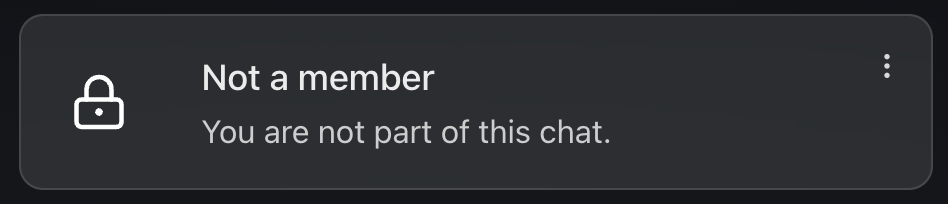
Chats you are not in will appear like the image below, since it wouldn't show up in your Telegram either.
Chat management (DMs)#
The workspace-level management of group chats and DMs is separated because they behave differently: a group chat has roles, members, and a shared history, while a DM is a one-to-one thread, with no concept of roles, that belongs to only those two people.
Group chats and DMs still appear next to each other chronologically in your chat feed for a normal chat experience. Amua just separates the management of those chats in the workspace.
The Contacts tab is where DMs are managed. Click "Import Contacts" to open a menu with your existing Telegram contacts and DMs, select the relevant items, set their visibility, and add them to the workspace.
Contact visibility
Contacts can be:
- Shared (visible to the whole workspace, the default),
- Private (visible only to you), or
- Limited (visible only to select users)
You can set this per contact at import or change it later from the contact card.
A private contact is fully hidden from the rest of the workspace; teammates don't even see a locked card or a grayed-out placeholder. That holds even if a teammate has their own DM history with that person.
However if someone else imports a contact that already exists privately in the workspace, the import succeeds and attaches them as an additional known contact with limited visibility, rather than failing or creating a duplicate.
Important: other members of your workspace will see contact metadata like name, username, profile photo, company, position, etc. but they will never see your private conversation. The only messages that will render for them in their interface are their own messages with that individual if they happen to have a chat history together. Otherwise, it will be blank.
Subgroups#
Subgroups are cross-sections of internal teammates, external contacts/DMs, and group chats that enable fine-tuned control over team structure and workflows. Group any combination of these by department, pipeline stage, project, or any other logic that maps to how your business operates.
Some examples:
- Department — Sales team, marketing team, engineering team
- Sales pipeline — Leads, active negotiations, closed deals
- Operations — Internal team, contractors, vendors
- Community — Public channels, moderation team, partners
Note that team members, DMs and group chats must have been added to the workspace already via their respective tabs in order to further sort into subgroups.
Subgroups also power bulk onboarding and offboarding. When you add a teammate to a subgroup, you have the option to add them to some or all of the Telegram group chats in that subgroup at once. Similarly, you can remove someone from all of the Telegram chats in a subgroup by clicking the overflow icon on their card and selecting "Remove from subgroup and all chats."
Team members can be part of multiple subgroups, but a chat can only live in one subgroup at a time. If a chat's purpose changes, move it to another subgroup.
How workspace structure --> chat filters#
The chat experience in Amua largely matches and mirrors Telegram, but there are additional filters you can apply to focus your chat feed that are mostly automatically powered by the structure of your workspace.
For more information, see the Chat Interfaces and Filters section.